Running a Google Ads campaign but still getting clicks from the wrong audience? It might be time to refine your targeting with negative keywords. We’ll show you how to add negative keywords to campaign with a full complete step-by-step guide from BRANDCOM – Pay-per-click (PPC) expert in Gold Coast.
Table of contents
What are negative keywords in SEO marketing?
Negative keywords are specific words or phrases you add to your pay-per-click (PPC) or Google Ads campaigns to prevent your ads from showing up for search queries that include those terms.

A step-by-step guide: How to add negative keywords to your campaign
Adding negative keywords is simple and helps optimize your campaign’s efficiency. Follow these 4 steps:
Log into Your Google Ads Account
Go to your Google Ads dashboard and select the campaign or ad group where you want to add negative keywords.
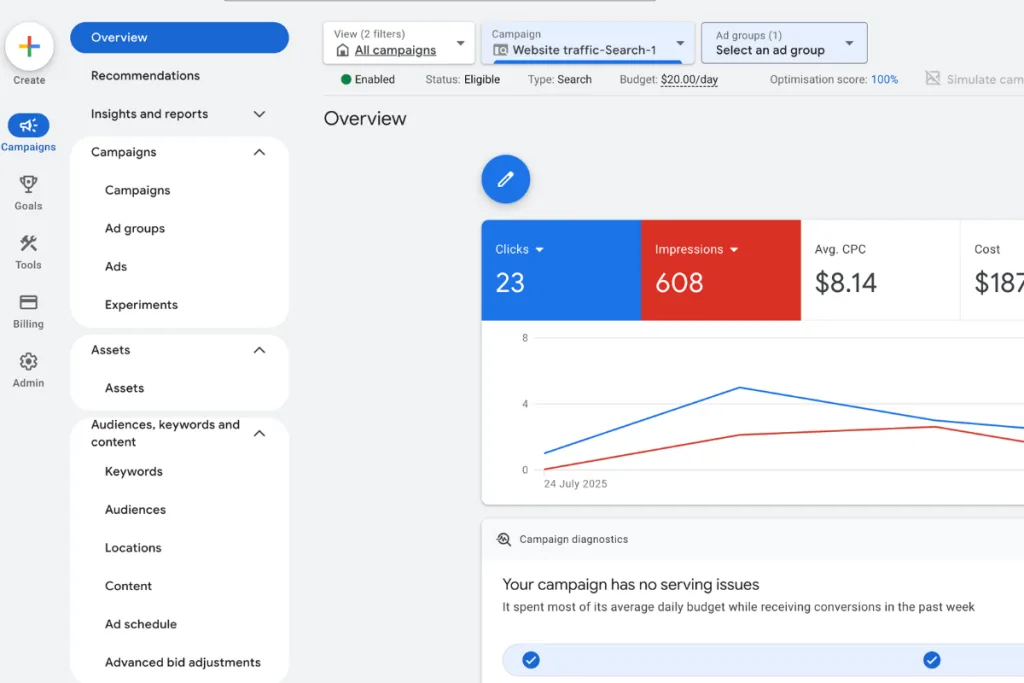
Navigate to the ‘Keywords’ Section
- On the left-hand menu, find and click on “Keywords”
- Under “Keywords,” select “Negative Keywords”
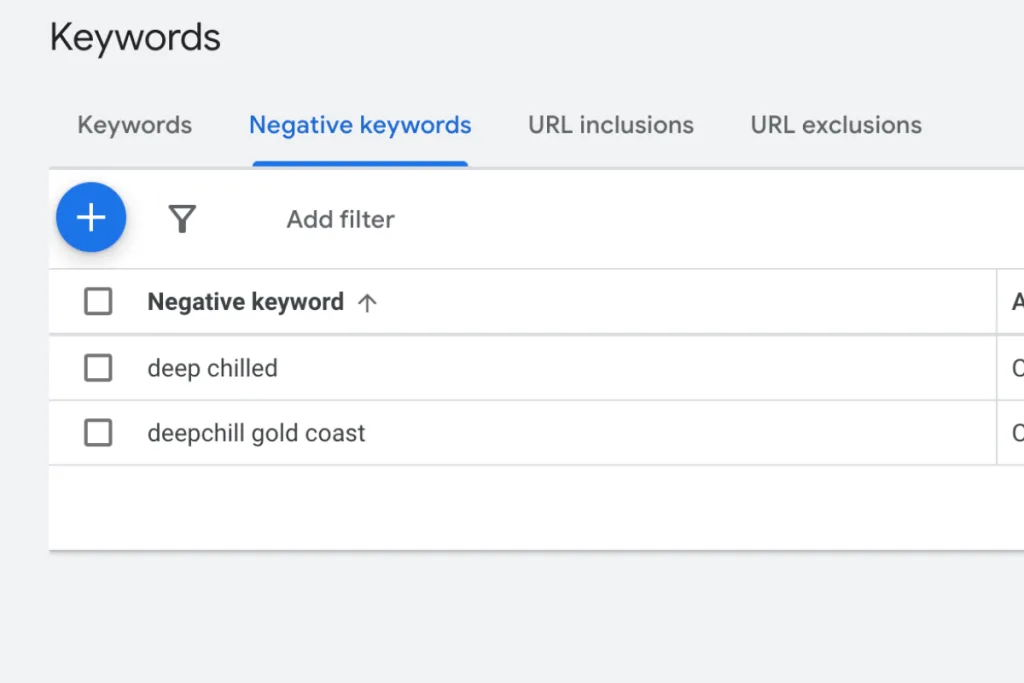
Add Negative Keywords
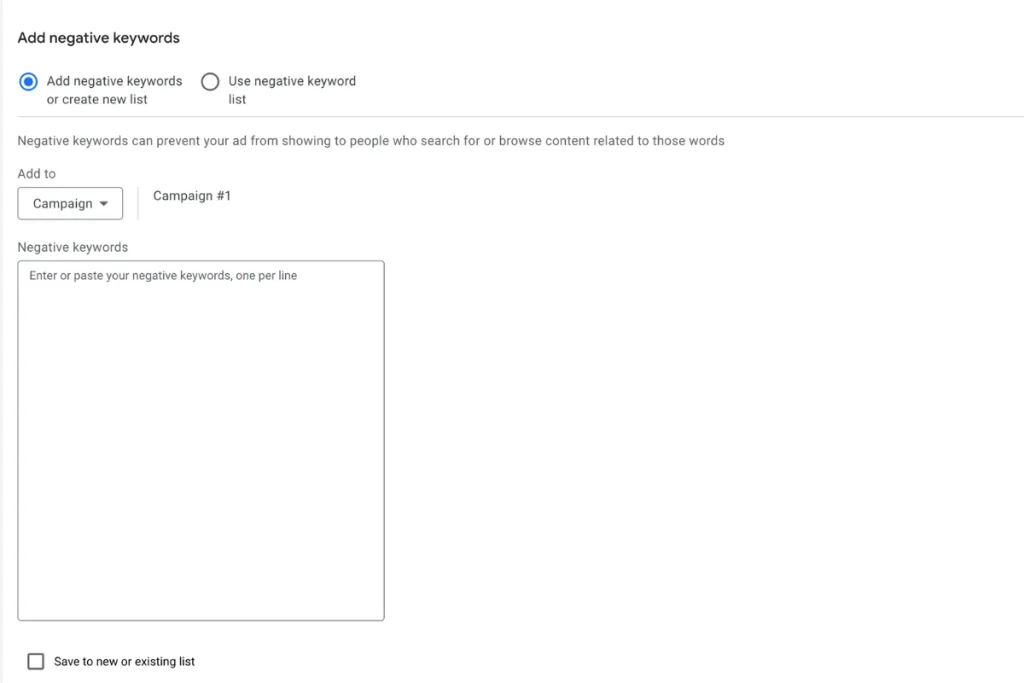
- Click the blue “+” button (or “+ Keywords”), then choose whether to add negative keywords at the campaign or ad group level.
- Campaign level: Keywords apply to all ads in the campaign.
- Ad group level: Keywords apply only to a particular ad group.
- Enter each negative keyword in the provided text field (one per line).
- Make sure you select the match type: broad, phrase or exact. Use quotation marks for phrase match (“shoes for men”) and brackets for exact match ([shoes for men]).
- Click Save to finish.
(Optional) Use Negative Keyword lists
To save time, you can create and manage negative keyword lists:
- Create a list from the “Negative Keywords” section.
- Add multiple negative keywords to the list.
- Apply the list across several campaigns at once.
More useful tips for using negative keywords from BRANDOCM, your expert PPC service Gold Coast:
- Check your search terms report often to spot words you don’t want your ad to show up for.
- If needed, add both singular and plural versions.
- Be clear, but don’t overdo it, removing too many can limit your reach.
- Keep your negative keyword list updated as your campaign grows.
Choosing the right keywords and knowing which ones to leave out is key to a successful Google Ads campaign. If you’re not sure how to add negative keywords to campaign or just want to make sure you’re doing it right, contact BRANDCOM, your expert PPC service Gold Coast.